Best OBS settings for streaming (Twitch, YouTube and Kick)

OBS’s defaults are fine for recording but not ideal for streaming. These are the settings that matter, what to set them to, and how to tell what’s wrong when the stream stutters. Every number here is a starting point: test, then adjust.
Video (Settings, Video)
- Base (Canvas) resolution: your monitor’s resolution, usually 1920x1080. This is the space you lay scenes out in.
- Output (Scaled) resolution: 1920x1080 if your upload and PC can take it; 1280x720 otherwise. 720p at 60 fps often looks better than a starved 1080p.
- Downscale filter: Lanczos (sharpest) if you scale down.
- Common FPS: 60 for fast games, 30 for Just Chatting, art and slow games.
Output and encoder (Settings, Output)
Set Output Mode to Advanced, then on the Streaming tab:
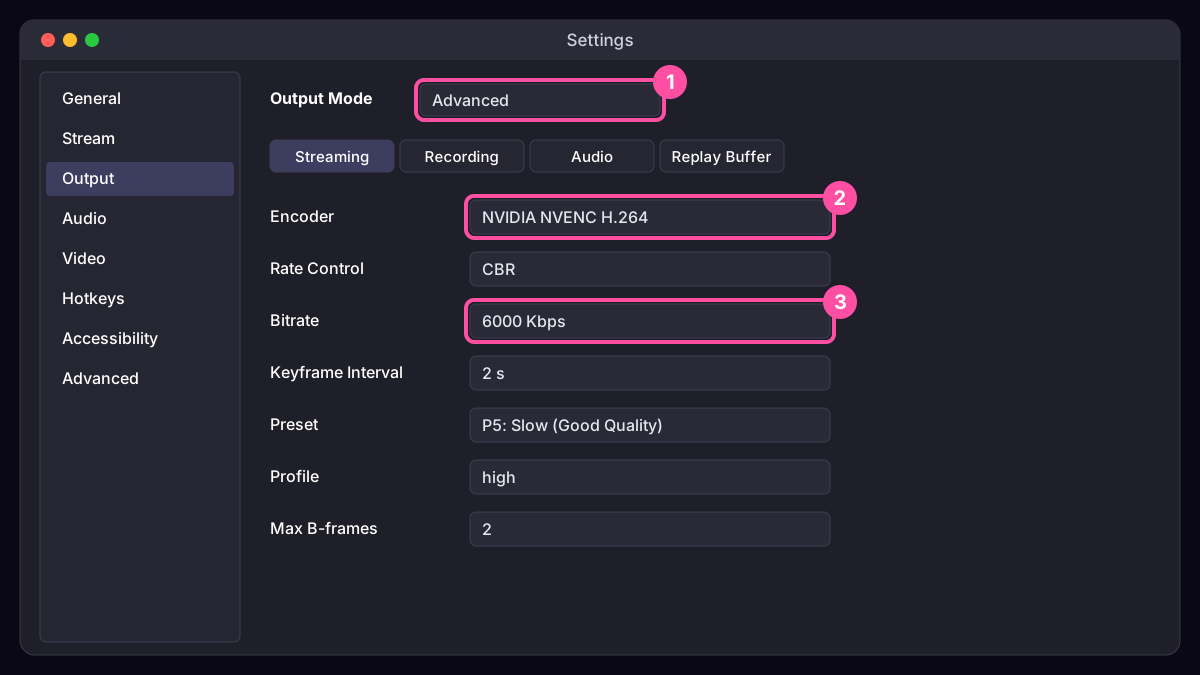
- Encoder: your graphics card’s hardware encoder: NVIDIA NVENC H.264, AMD HW H.264 (AMF) or Intel QuickSync H.264. They barely touch your game’s performance. Use x264 (the processor) only if you have no hardware encoder; start at the veryfast preset.
- Rate control: CBR (constant bitrate). Streaming services expect it.
- Bitrate: see the table below.
- Keyframe interval: 2 seconds (Twitch requires it; YouTube and Kick are happy with it).
- Preset: for NVENC, P5 or P6 (Quality) if your card copes; lower if you see encoding lag.
- Profile: High. Look-ahead: off. Psycho Visual Tuning: on (NVENC). B-frames: 2.
Bitrate: what to use
Use no more than about 75% of your measured upload speed, so the rest of your internet keeps working.
| Stream | Twitch | YouTube |
|---|---|---|
| 1080p, 60 fps | 6,000 Kbps | 9,000 to 12,000 Kbps |
| 1080p, 30 fps | 4,500 to 6,000 Kbps | 6,000 to 9,000 Kbps |
| 720p, 60 fps | 4,500 Kbps | 4,500 to 6,000 Kbps |
| 720p, 30 fps | 3,000 Kbps | 3,000 to 4,500 Kbps |
Kick accepts similar numbers to Twitch and somewhat higher. Platforms update their limits, so check each one’s broadcasting guidelines. Twitch also offers Enhanced Broadcasting in OBS for supported NVIDIA cards, which sends several qualities from your PC; turn it on in Settings, Stream if OBS offers it.
Audio (Settings, Audio and Output)
- Sample rate: 48 kHz.
- Audio bitrate: 160 Kbps AAC (Output, Audio tab).
- In the Audio Mixer, add a Noise Suppression and a Compressor filter to your mic, and keep game and alert sounds well below your voice. Scenqo alert sounds are levelled to the same loudness, so one volume fits all of them.
Fixing lag: read the Stats dock
Open Docks, Stats while streaming. It tells you which of three problems you have:
- Dropped frames (network): your connection can’t keep up. Lower the bitrate by 1,000 at a time, use Ethernet, or pick a closer ingest server.
- Skipped frames (encoding lag): the encoder is overloaded. Switch to the hardware encoder or a faster preset, or lower the output resolution.
- Missed frames (rendering lag): the GPU is busy. Cap your game’s frame rate, tick “Shutdown source when not visible” on browser sources you aren’t showing, and run OBS as administrator on Windows.
A good default
NVENC H.264, CBR, 6,000 Kbps, keyframe 2, 1920x1080 output at 60 fps, 160 Kbps audio. If the Stats dock stays at zero dropped and skipped frames for a whole stream, you’re set.
Scenqo packs are animated scenes you paste into OBS as links, with matching alerts, panels and a transition. First Light is free.