Menu
StorePalm NightFree packFree toolsBlogHelpAccount

Help / OBS Studio

Set up the transition

Put the transition link on top of a scene so it wipes in as the scene opens.

The Scenqo transition is a browser source that plays a 1.3-second wipe. It sits on top of a scene and plays each time you switch to that scene.

  1. In each scene, add the Transition link as a Browser Source at 1920 x 1080.
  2. Tick Refresh browser when scene becomes active.
  3. Drag it to the top of the source list so it covers everything during the wipe.
  4. In the Scene Transitions dock, set OBS’s own transition to Cut (or Fade at 300 ms). The wipe hides the cut.
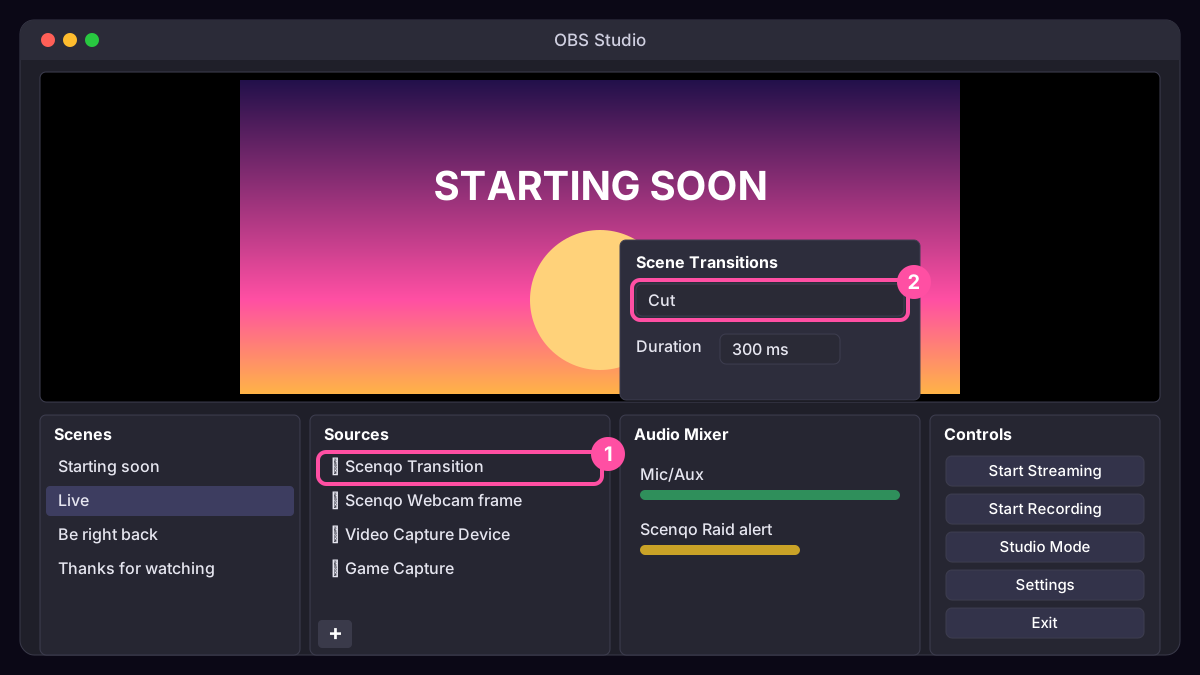
The transition source at the top of a scene, with OBS set to Cut
The transition source at the top of a scene, with OBS set to Cut (illustration, simplified)

Tip: right-click the source, Copy, then Paste (Reference) into your other scenes so you only set it up once.

Was this missing something? Tell us and we’ll add it.

Related help

Add a Scenqo scene to OBS Studio

Sources, +, Browser, paste the link, set the size and tick the right boxes.

Import the OBS scene collection

Every scene set up in one go: Scene Collection, Import.

? Help
Need a hand?
Set up Palm NightSet up First LightSomething’s not workingFind my orderContact us

We reply by email, usually within a day.