How to stream on Twitch: a complete beginner’s guide
Streaming on Twitch is free, and you can be live in an afternoon. This guide walks through every step in order, from making the account to what to do after your first stream ends. It assumes a PC or Mac; consoles can stream straight to Twitch too, but a PC with OBS gives you scenes, alerts and overlays.
What you need
- A computer that runs your game comfortably. A recent graphics card (NVIDIA, AMD or Intel Arc) can encode the stream itself, which leaves your processor free.
- Upload speed of about 6 Mbps or more for 1080p, 4 to 5 Mbps for 720p. Run a speed test and look at the upload number, not download. Wired Ethernet beats Wi-Fi.
- A microphone. Viewers forgive a plain camera, not bad sound. A USB mic is a big step up from a headset.
- A camera (optional). Many great channels start without one.
1. Make and set up your account
- Sign up at twitch.tv and verify your email.
- Turn on two-factor authentication in Settings, Security and Privacy. It protects your channel, and Twitch asks for it before some features.
- Add a profile picture (256 x 256 or bigger), a profile banner (1200 x 480) and a short bio. Our bio generator writes five in a click, and Twitch graphics sizes lists every image size.
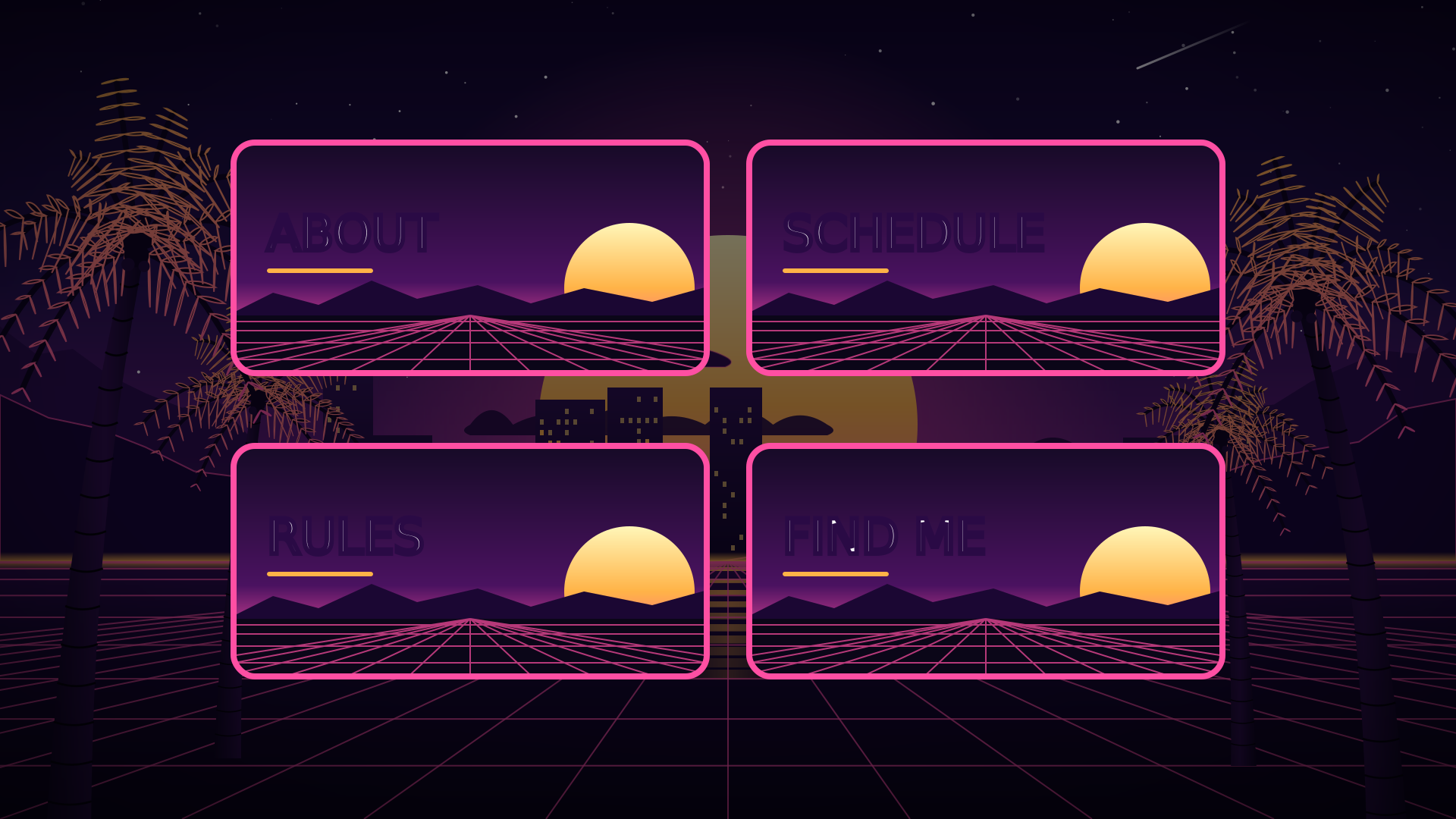
- Add panels under About: who you are, schedule, rules and socials. See what to put in each panel.
2. Install OBS Studio
OBS Studio is free and open source, on Windows, macOS and Linux. Download it from obsproject.com and run the Auto-Configuration Wizard the first time: choose “Optimize for streaming”, pick Twitch, and let it test your connection. It picks a sensible resolution and bitrate. Not sure which app to use? Read OBS vs Streamlabs.
3. Connect OBS to Twitch
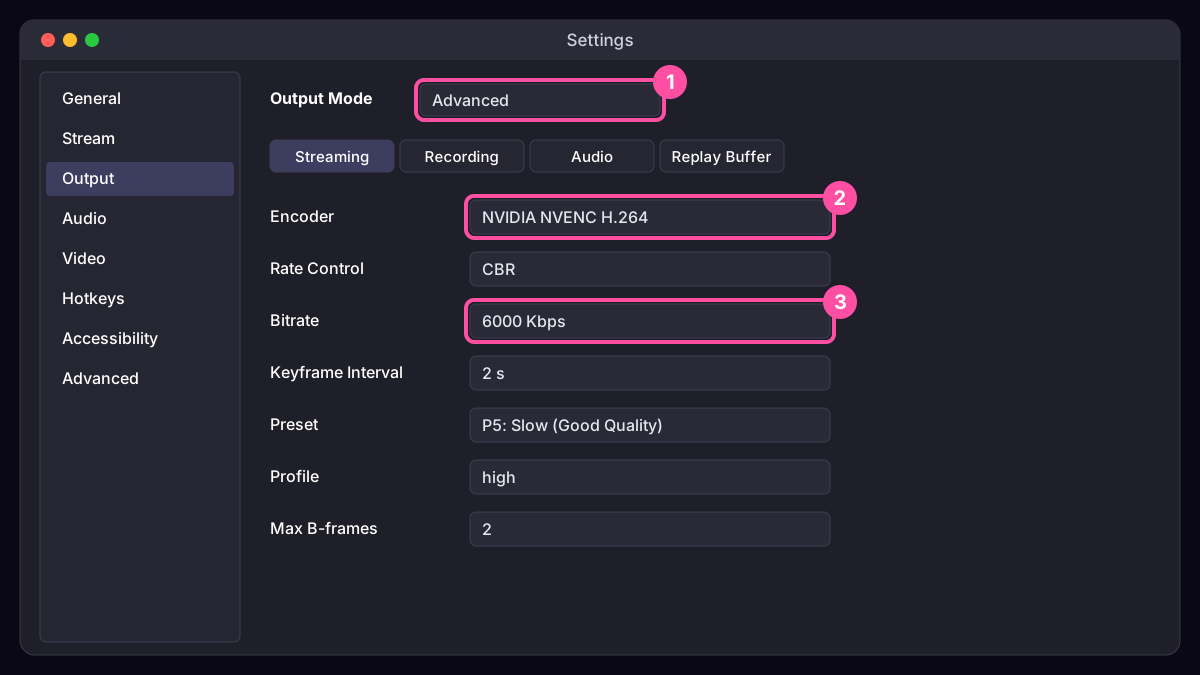
In OBS open Settings, Stream, choose Twitch as the service and press Connect Account. Sign in, and OBS adds Twitch’s chat and stream info docks. (You can also paste your stream key from Creator Dashboard, Settings, Stream. Never show that key on stream: anyone with it can stream to your channel.) Then set your encoder and bitrate; best OBS settings for streaming has the numbers.
4. Build your scenes
A scene is a layout you switch to. Four cover most streams:
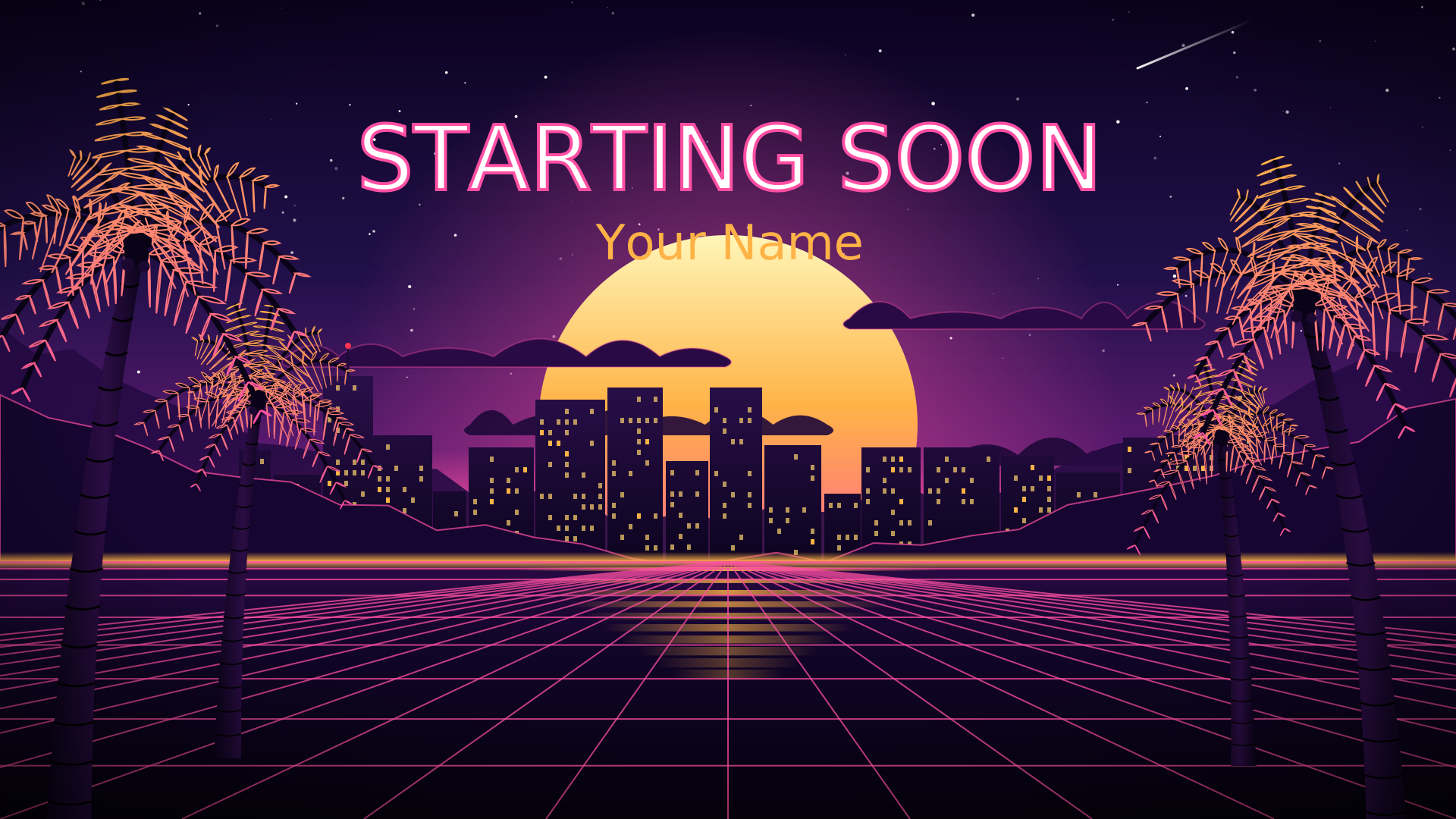
- Starting Soon: a countdown while people arrive. See Starting Soon screens.
- Live: your game (Game Capture or Display Capture), your camera (Video Capture Device) with a webcam frame, and your mic.
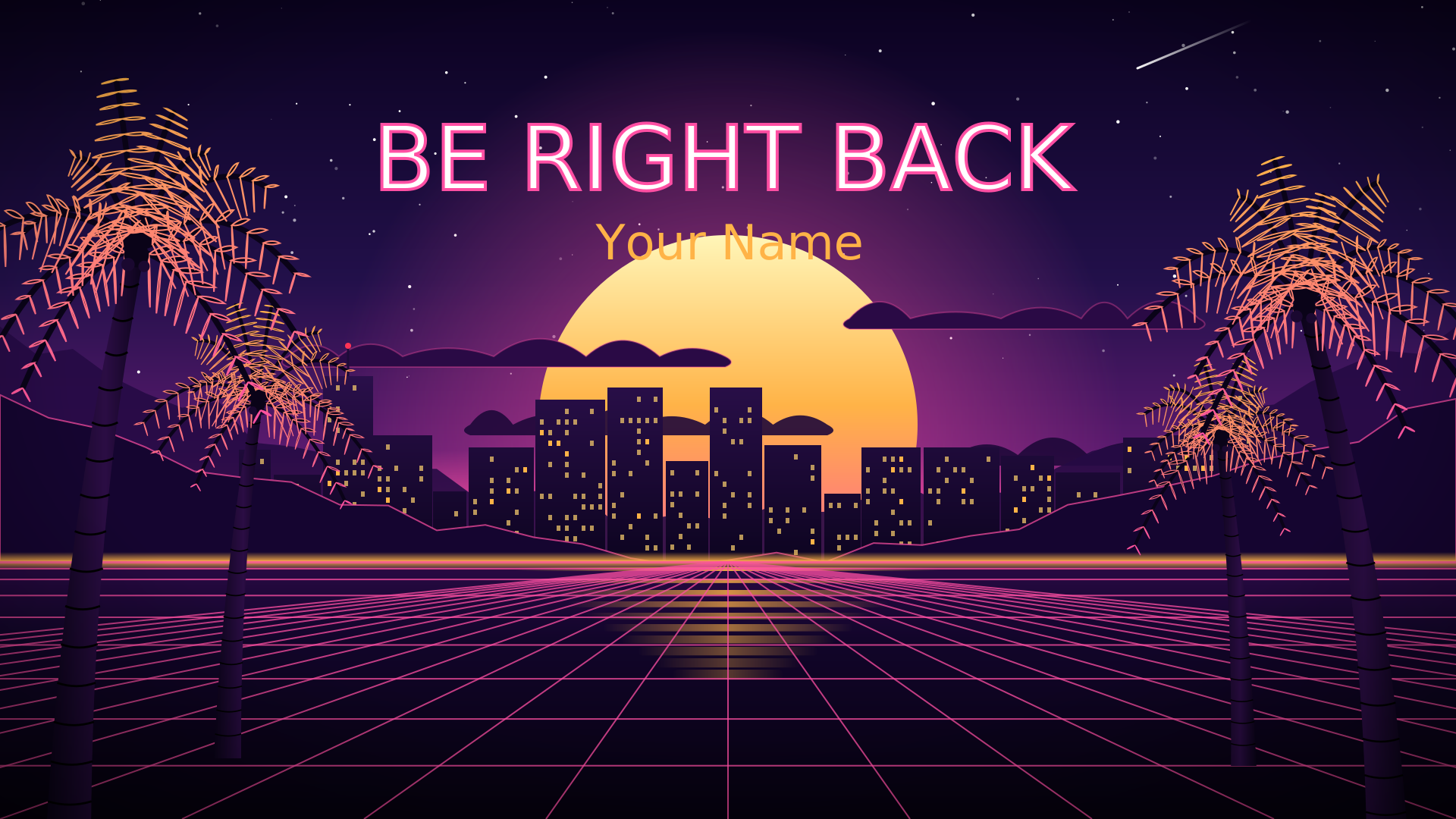
- Be Right Back: for breaks.
- Ending: thanks, your next stream and your socials.
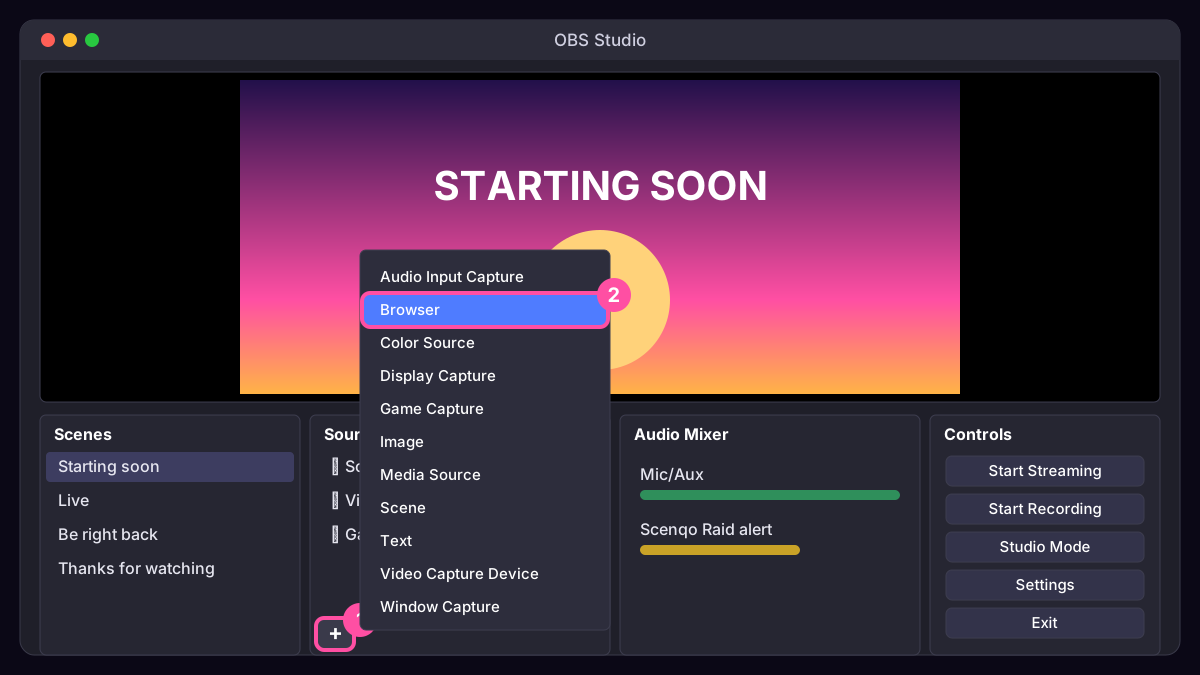
To add something to a scene, press + under Sources. Overlays like Scenqo’s are Browser sources: paste a link and set the size. Or import a ready-made scene collection: our free First Light pack includes one with every scene set up.
5. Add alerts
Alerts thank people the moment they follow, subscribe, cheer or raid. Make a free StreamElements or Streamlabs account, set up an alert box, and add its link to OBS as a Browser source above your game. Keep alert sounds well below your voice. Full walkthrough: stream alerts with sound.
6. Fill in your stream info
- Title: what you’re doing and why someone should click. Up to 140 characters; the first 40 matter most. Try the title generator.
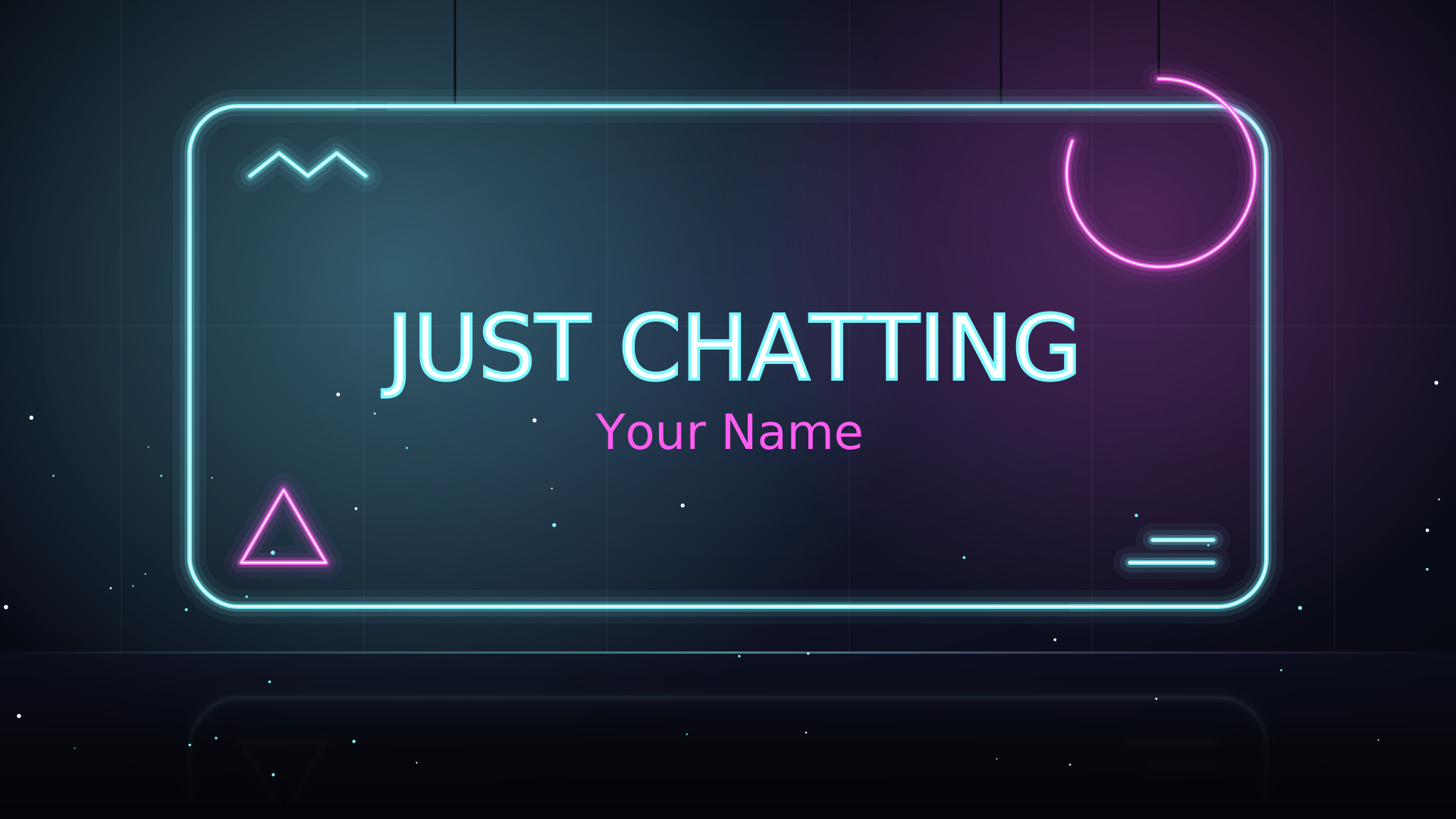
- Category: the game or “Just Chatting”. It decides where you appear in Browse.
- Tags: up to 10, such as your language and style (English, Cozy, Competitive).
- Language and content labels, if your stream needs them.
7. Do a test run
Press Start Recording and play for two minutes, talking as you would live. Watch it back: can you hear yourself over the game? Is the text readable on a phone? Do the alerts work? Fix it now, not on stream. In OBS’s Stats dock, dropped frames point to your connection (lower the bitrate); encoding lag points to your PC (use the graphics card encoder or a faster preset).
8. Go live
Switch to Starting Soon, press Start Streaming, and say hello to everyone who arrives, by name. When the countdown ends, switch to Live. Talk even when nobody is chatting: people watch for a while before they type, and a quiet streamer looks like a paused video.
9. After the stream
- Switch to your Ending scene, thank people and say when you’re back. Raid another streamer: it’s friendly and brings you goodwill.
- Check Creator Dashboard, Analytics: average viewers, follows and when people left.
- Clip your best moments and post them on TikTok, Shorts and Instagram, where new viewers find you.
- Stream on a steady schedule and put it in your panels.
Becoming an Affiliate
Affiliate unlocks subs, bits and ads. At the time of writing Twitch asks for 50 followers, 500 minutes streamed across 7 different days in the last 30 days, and an average of 3 viewers. Check Twitch’s Affiliate page for the current rules, and watch your progress in the Creator Dashboard.
Common first-stream mistakes
- Showing your stream key or your desktop with private info. Use Game Capture, not Display Capture, when you can.
- Game louder than your voice. Aim for your mic peaking in the yellow, game well below.
- Not talking. Narrate what you’re doing and why.
- Changing schedule every week. Regulars need to know when to come.
Scenqo packs are animated scenes you paste into OBS as links, with matching alerts, panels and a transition. First Light is free.